
- Navigate to Settings > Compliance Logs > Templates.
- Find the desired log, then click on Actions (on the right-hand side).
- Select Edit Log Template
Must Know! Only Super Admin, Full Access and Logs Super Users for the facility will be able to see this area.
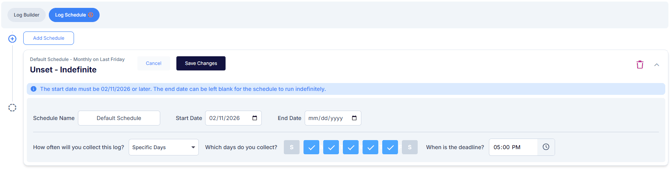
When to Use the Log Schedule Builder
You may want to add a new schedule when:
- Activating and Deactivating a log.
- Changing the frequency of log entries (e.g., moving from daily to weekly collection)
- Adjusting the days or times when entries are due
- Transitioning from a temporary collection schedule to a permanent one
- Setting seasonal or time-based variations in compliance monitoring
Step-by-Step Instructions
Step 1: End the Current Schedule (if needed)
If the existing log schedule is set to indefinite, you will first need to select an end date before creating a new schedule.
Helpful Hint: It is recommended to set the end date to today after the current log template entries have been completed for the day. This ensures no required logs are missed during the transition.
Step 2: Add a New Schedule
Click + Add Schedule and complete the following fields:
- Schedule Name: Enter a descriptive name for the new schedule
- Start Date: Set the start date to the day after the previous schedule's end date
- End Date: For indefinite schedules, leave this field blank
- Collection Frequency: Specify how often entries should be collected
- Due Days and Times: Select which days and what times entries are due
Log Schedule Options
When creating a new schedule, you can choose from the following frequency options:
- Specific Days: Select any combination of the following days for the log due date: Sun, Mon, Tues, Wed, Thu, Fri, Sat.
- Weekly: Set the log to be due on a specific day of the week.
- Monthly:
- Choose the First, Second, Third, Fourth, or Last occurrence of the month.
- Select the day of the week (Sun - Sat) for the due date.
- Quarterly: Set deadlines for fiscal quarters: (Jan – Mar, Apr – Jun, Jul – Sep, Oct – Dec)
- Set for first or last week of the fiscal quarter
- Then set day of week within that first or last week of the fiscal quarter
- Set time of day the quarterly log is due
- Yearly: Choose a specific month and day of the month (1-31) for the log's due date.
Important Notes
- Schedule Continuity: Ensure the new schedule's start date immediately follows the previous schedule's end date to avoid gaps in compliance tracking.
- Indefinite Schedules: Only one schedule can be set to indefinite at a time. You must set an end date on the current indefinite schedule before creating a new one.
- Historical Data: Previous schedules and their entries remain accessible for reporting and compliance review even after new schedules are created.
Helpful Hint: The schedule determines which entries are marked as "Due Today", "Overdue", and "Upcoming". Missing log entries will be automatically logged based on the selected schedule.