
The Hospital Affiliation Request feature in RFX allows facilities to submit affiliation documents electronically.
Helpful Hint: Completed Hospital Affiliation documents can still be uploaded manually without using this feature.
Hospital Affiliation Requests can be completed in the Checklist during the provider’s privileging periods (see Managing Provider Checklists).
To assist with this process, two new workflows have been added to the document library:
- Authorization and Release
- Hospital Affiliation
These workflows can be accessed in the Provider and Staff Document Library under system settings (see Setting Up the Provider Library).
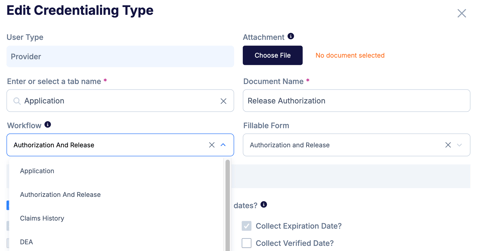
The Authorization and Release workflow must first be created. The document can either be a fillable form completed by the provider or one uploaded.
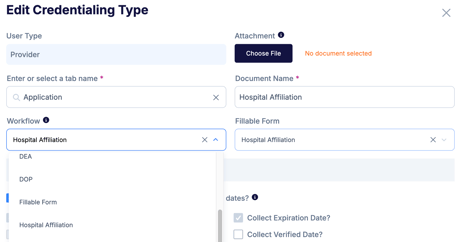
The Hospital Affiliation workflow must also be created. The document can be either a fillable form completed by the hospital or manually uploaded.
Once the Hospital Affiliation document is added to the checklist, a hospital icon will appear next to the trashcan. This icon allows the user to send a document request directly to the hospital.

Sending a Hospital Affiliation Request
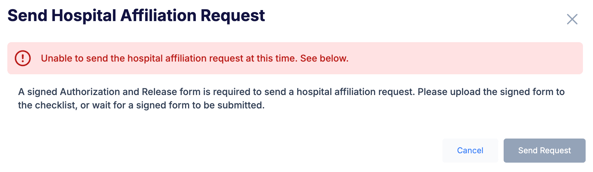
To send a Hospital Affiliation Request, a completed Authorization and Release document must be included in the checklist. If the authorization is not attached, a warning message will appear.
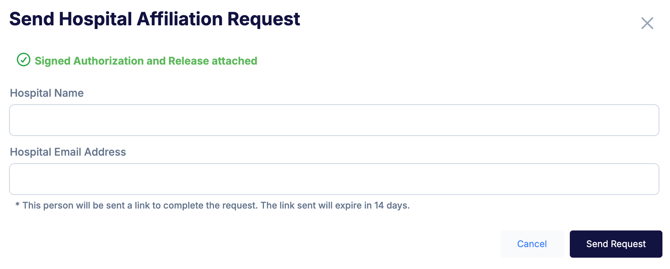
Once the Authorization and Release document is attached, a Hospital Affiliation Request can be sent. If the provider has filled out the Current Hospital Affiliations section of the application, those contacts will be available for selection.
If the provider hasn’t filled out the section, or if a different reference needs to be chosen, the contact information (including name and email) can be entered manually.
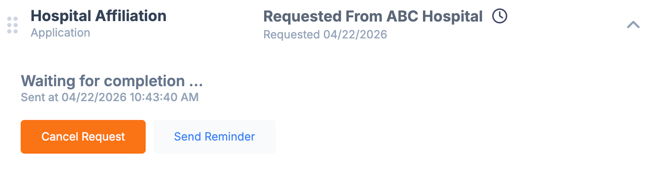
Once the request is sent, the status will be updated in the checklist.
Hospital Email and Portal Access
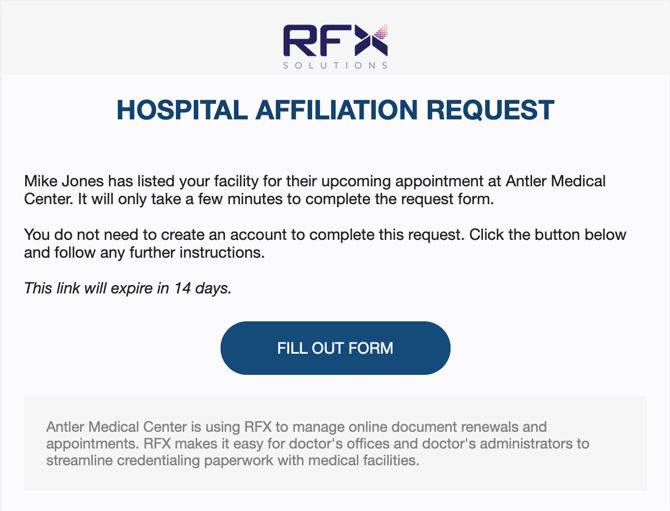
The hospital contact will receive an email with a link to complete the form. By clicking the Fill Out Form button, they will be automatically logged into RFX and their portal, without needing to create an account.
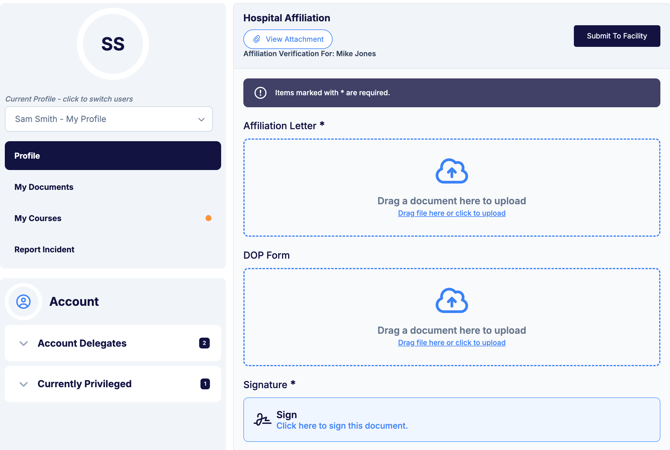
In their portal, the peer will see the request to complete and can fill out the attached form. They will also have access to the signed release form.
After completion, the checklist item will be updated in the checklist as normal.
